What this tool changes
Open the base MIDI file, then add a second .mid with the toolbar. The incoming tracks join the same project, and both files stay on this device.
Combine two files
Open the base MIDI file, then add a second .mid with the toolbar. The incoming tracks join the same project, and both files stay on this device.
Stay on-device. Start empty if you have no file, or try a public demo.
Off-grid notes, wild velocities, leftover gaps — the dirty AI-song export producers actually get.
A clean four-bar piano phrase you can transpose, quantize, or reshape immediately.
Drums, bass, and chords on separate tracks for mute, solo, and merge practice.
The same hook after quantize and velocity cleanup — the after shot for the messy export.
Your file stays on this device unless you explicitly use Creator Cloud. After an edit, one local recovery copy is saved in this browser until you replace or clear it.
Creator Cloud
Creator Cloud adds cloud history and reviewed AI MIDI edits a month. The tool you are using stays free.
Open the base MIDI file, then add a second .mid with the toolbar. The incoming tracks join the same project, and both files stay on this device.
Events outside the selected operation remain in the low-level timeline. Downloading before any edit returns the exact source bytes.
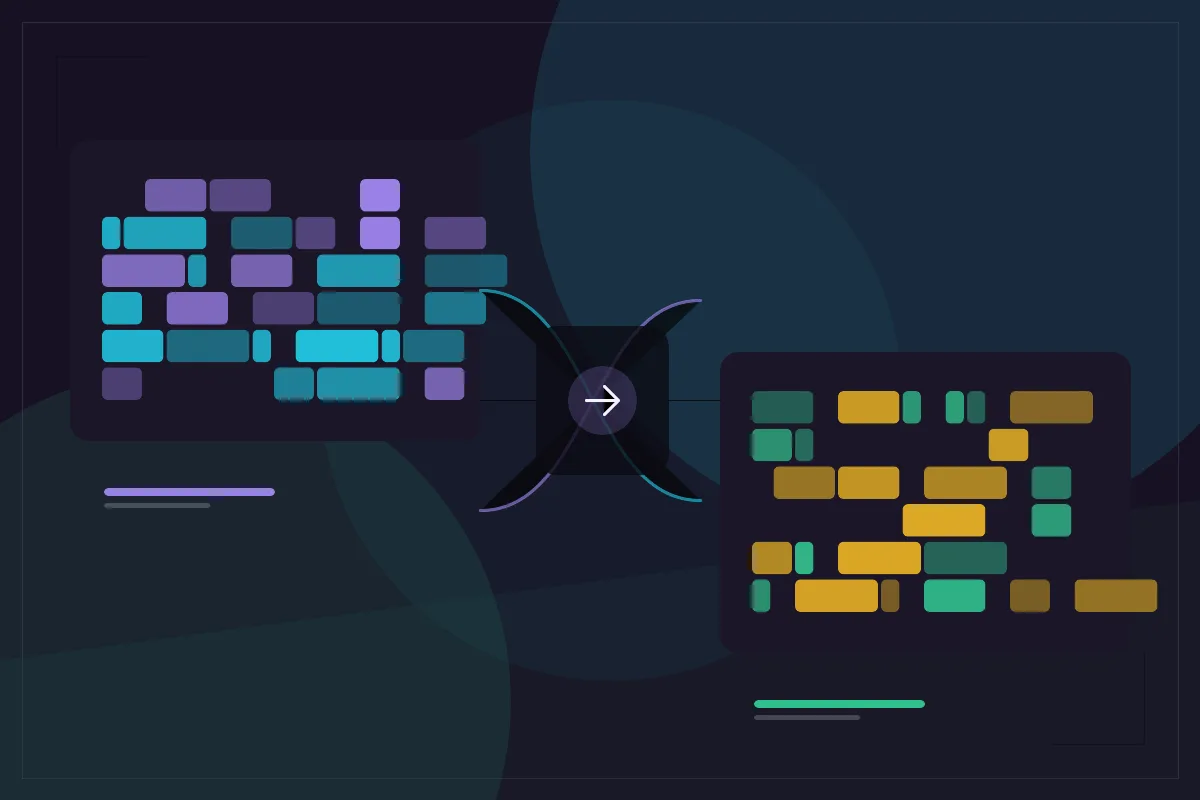
The first file is the base. Its PPQ value becomes the shared timing grid. Tracks from the second file are copied into the project and their event ticks are scaled when the two files use different PPQ values. The result is written as a Type 1 file.
Notes, controllers, programs, pitch bend, track names, and tempo events from the incoming file remain in the timeline. A conductor-only track at the start of the second file is skipped when that file has other musical tracks, which avoids stacking a second empty conductor lane.
Start with the file whose tempo map and track layout you trust. The merge keeps the base structure and appends incoming tracks; it does not try to reconcile two different arrangements or choose a winner when both files contain tempo changes.
If both files have tempo events, inspect the merged tempo map before export. Most DAWs follow one conductor map, and two competing maps can make the result sound different from either source. Use the tempo tool first when you need one clear BPM.
Open the base, merge the second file, and look at the track list before downloading. Rename tracks so the source is obvious, mute or remove duplicates, and check the piano roll where the two arrangements overlap. Then preview short sections around the join.
The file checker can flag invalid channels, missing End of Track events, and range problems. It cannot know whether the destination synth maps program 40 to the same instrument as the source, so audition the result in the software that will play it.
Merging is bounded by the same editor limits as every other operation: up to 64 tracks, 20,000 events, and 5 MB per opened file. If the combined project would exceed a limit, the merge stops with a clear error instead of producing a partial file.
The original files are not modified. One Undo restores the project before the merge, and Download MIDI writes a separate file with a name that starts with editmidi-. The merge runs locally, so no MIDI content is uploaded.
Every page runs on the same browser MIDI engine, so you can move between them without uploading or re-importing your file.