Combine projects
How to merge MIDI files
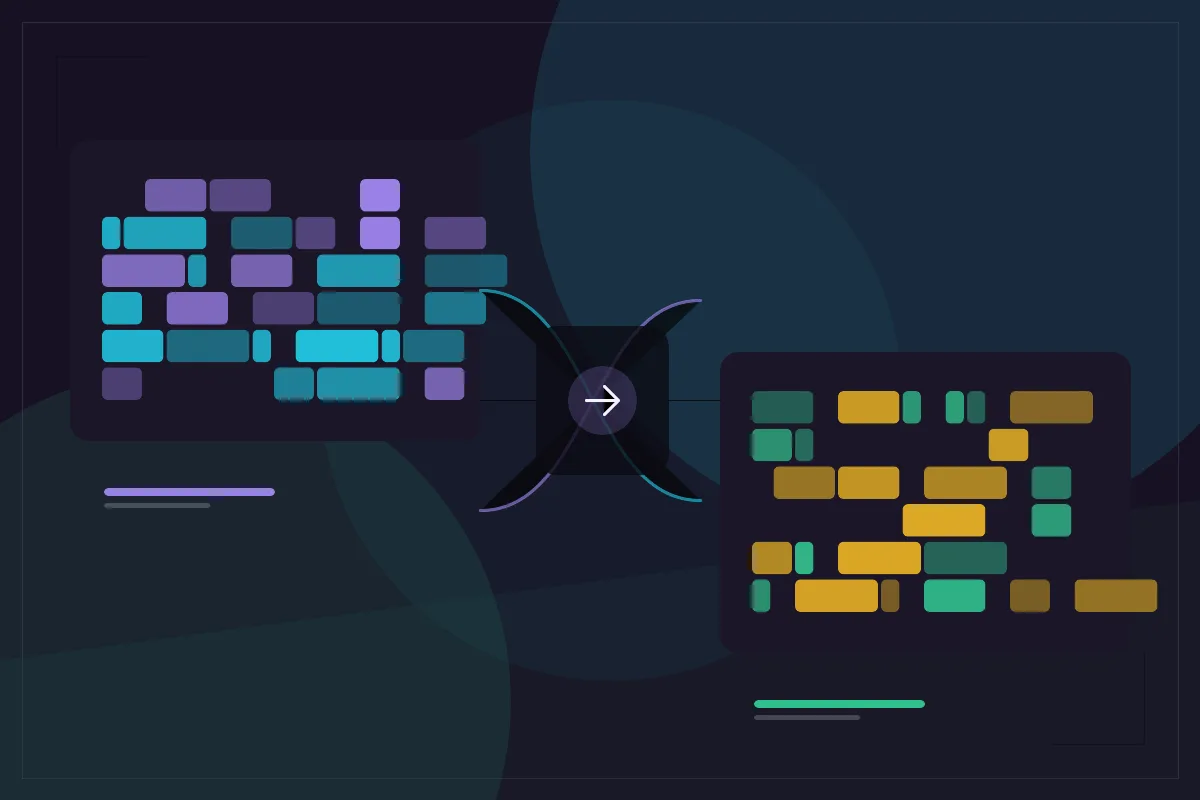
Merging MIDI is not the same as pasting one song after another. You are combining event timelines, and the base file decides the timing grid. This guide covers the decisions that keep a merge clean.
What matters most
- The base file sets the PPQ grid for the merged project.
- Incoming tracks keep their notes, controllers, programs, and names.
- Two competing tempo maps can make the merge sound wrong.
- Rename and audition tracks before exporting.
What the merge operation preserves
The incoming file contributes its tracks and events. Notes, controllers, program changes, pitch bend, track names, and tempo events remain in the timeline. If the two files use different PPQ values, the incoming event ticks are scaled to the base grid.
A conductor-only first track in the incoming file is skipped when that file has other musical tracks. That avoids stacking an empty conductor lane, but it does not merge two tempo maps into one intelligent map. The events are preserved; the musical reconciliation is your job.
Choose the base file deliberately
Use the file with the tempo map and track layout you want to keep. If one file came from a DAW session at a fixed tempo and the other came from a live performance with tempo changes, decide which timing world the result should live in before merging.
Starting with the wrong base can make every incoming track feel slightly off even though the notes are intact. The merge is mechanically correct; the musical result depends on the choice of base and on whether the two files were meant to share a timeline.
Resolve tempo and PPQ differences
PPQ differences are handled by scaling incoming ticks. Tempo differences are not resolved automatically. If both files contain tempo events, the merged timeline can contain both sets. Most DAWs follow one conductor track, so the result may not match either source.
If the goal is a single steady tempo, use the tempo tool on the base before merging or on the result afterward. If the goal is to preserve a live tempo map, keep only the map that matches the performance and remove or ignore the other one.
Rename tracks and remove duplicates
After the merge, rename tracks so the source is obvious. A project with two tracks called Piano and no indication of which file they came from is hard to maintain. Add a short prefix such as Bass A or Keys B if the names are ambiguous.
Look for duplicate parts before exporting. Two identical bass lines will sound louder and may phase. Mute or delete the duplicate in the editor, or keep both only when they are intentionally layered. The merge does not know which parts are redundant.
Inspect the result before you export
Run the file checker on the merged project. It reports tracks, channels, programs, controllers, tempo points, and structural warnings. Check that the combined channel count and program list match what you expect from both sources.
Audition the join in short loops. Listen for notes that overlap unexpectedly, a second tempo map that pulls the timing, or a program change that switches an instrument halfway through. Fix those issues in the editor before downloading.
Export a separate Type 1 file
Downloading writes a new file and leaves both sources untouched. The merged project is exported as Type 1 because it contains multiple tracks. Keep the original files as references, especially if the merge will be edited further.
The operation is bounded by the editor limits: up to 64 tracks, 20,000 events, and 5 MB per opened file. If the combined project would exceed a limit, the merge stops with a clear error instead of producing a partial result.
Common merge mistakes
The most common mistake is starting with the wrong base and then trying to fix the timing after the merge. The second is assuming that two tempo maps will reconcile themselves. The third is merging duplicate parts and calling the doubled sound an arrangement decision.
A clean merge starts with a deliberate base, a check for duplicate tracks, and an audition of the join. Rename the incoming parts, verify the channels, and run the file checker. If the result feels wrong, undo the merge and fix the source files before trying again.
- Use the file with the tempo map you want to keep as the base.
- Inspect both tempo maps before trusting the result.
- Remove duplicate parts instead of hiding them with velocity.
A final audition checklist
Listen to the first bar, the join, and the last bar. The first bar confirms that the base timing is right. The join reveals duplicate notes, competing tempo events, or a program change that switches instruments. The last bar catches notes that were cut off by the merge.
Then import the file into the destination DAW and check the track order. A merge can be structurally correct and still be confusing to use if the new tracks are buried at the bottom or named after the source file. A minute of renaming saves an hour of searching later.
- Audition the first bar, the join, and the last bar.
- Check the track order in the destination DAW.
- Rename merged tracks before saving the project.
Questions and answers
Does merging MIDI combine the files end to end?
No. The merge combines tracks on the same timeline. It does not append one song after another. If you need a medley, place the second arrangement at the correct tick offset in a DAW or editor first.
What happens when the two files have different PPQ?
Incoming event ticks are scaled to the base PPQ. The notes keep their musical positions, but the merged file uses the base timing resolution.
Can I merge more than two files?
Yes. Merge a second file into the base, then merge a third into the result. Check the track count and event count as you go, because the editor limits still apply.
Will the merged file keep both tempo maps?
Tempo events from the incoming tracks are preserved. That can create competing tempo maps. Inspect the result and keep the map that matches the performance you want.
Share this guide